What's new ✨

All the latest updates, improvements, and fixes to PiCortex.

Subscribe to updates →

A second opinion on a leave request

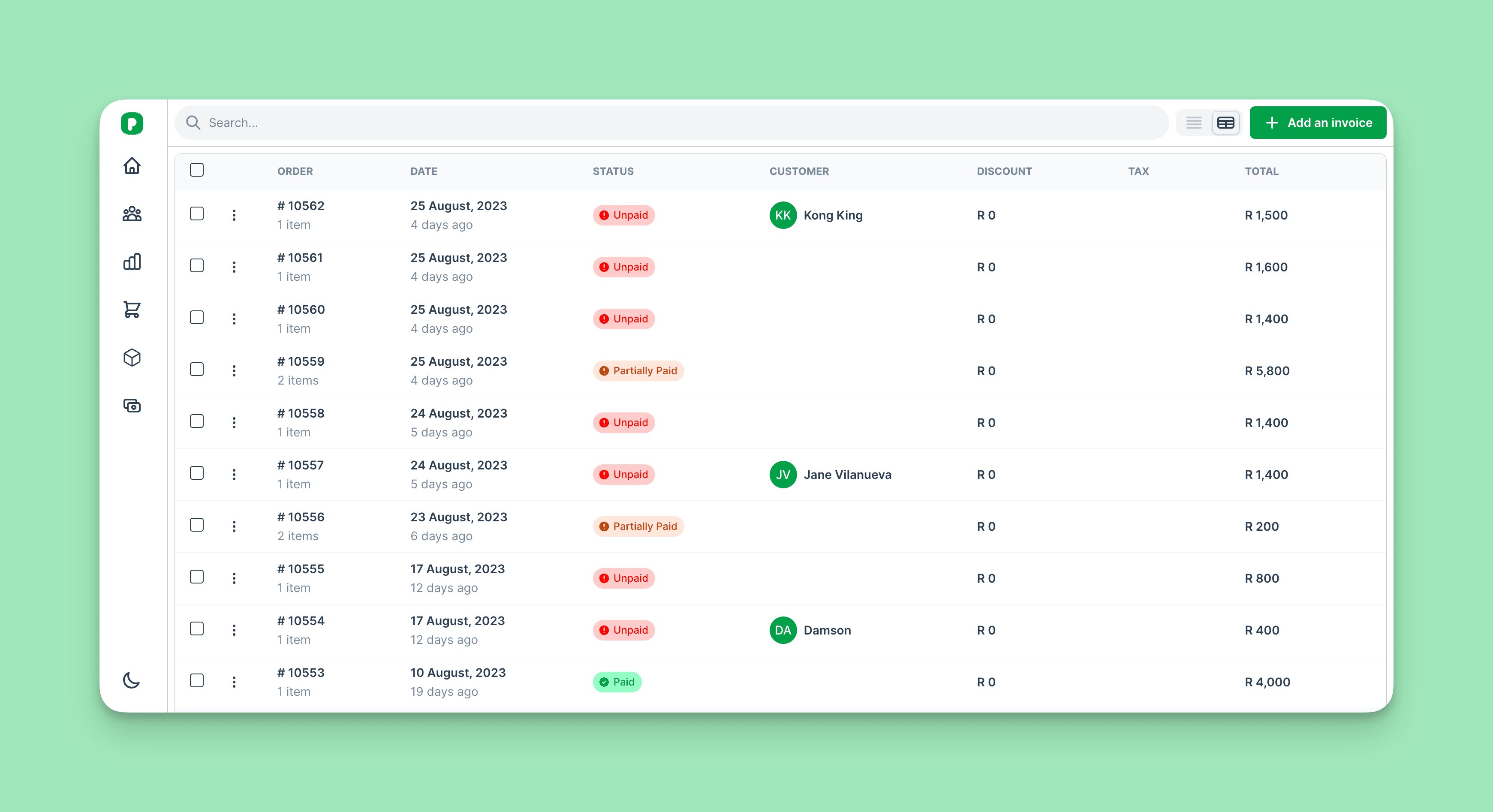
Deciding someone's leave is a judgment call on numbers: what they have left, what's already booked, what overlaps. The AI review gathers those numbers for you — the entitlements and balances as the system holds them, in the cycle each belongs to, and any approved leave that overlaps the requested dates — and says what it sees.

Open a pending request and the AI review is at the top of the page, under the request's title, for whoever may decide it: administrators, ESD, HR, and the person a request is waiting on. One click, one answer:

  • Looks OK to grant, Looks risky to grant, or Not sure — check manually — never a decision, always advice. Approve and Reject stay yours.
  • Reasons that quote the number each rests on ("10.5 of 15 annual days remain"), not "plenty of days left".
  • The answer is kept, so reopening the request shows it again without asking the AI again.

The review is hidden once a request is decided, and an employee never sees it on their own request. When the numbers don't add up, it says so rather than guessing — that's what Not sure — check manually is for.
Web

Improved

  • A pending leave request has an AI review at the top of the page for whoever decides it — the balances, the overlaps with approved leave, and an advise-only verdict quoting its numbers

Change a task where it is listed

A task is the same wherever it is listed. Tick the box when it's done. Click its status, due date or the person's initials to change them. Nothing leaves the page.

Click a task's title and it opens in a panel beside the list: the next step as one button, who it's on and when it's due, its subtasks, files and notes. Open full page has the rest.

Web

New

  • Tick a task done, and change its status, due date or who it's on, right on its row, on a job's checklist, in Tasks and on a customer's or order's Tasks tab
  • Click a task to open it in a panel beside the list, with its next step, subtasks, files and notes
  • Show All, Mine or Overdue tasks, and hide the ones that are done

Improved

  • Add a task to a checklist phase from the foot of the phase, and see each phase's progress as a bar

Event money at a glance

Each money tab on an event now starts with a summary card:

  • Bills: what's been billed, what's still to pay and what's overdue. Drafts and voided bills are listed but not counted, and a note under the bar names them.
  • Quotes: the accepted quote, excluding VAT, and its margin. If a line has no cost yet, it says so instead of showing a margin.
  • Purchase orders: what's on order, with a bar splitting what suppliers have billed from what's still to come.

The bills total used to include voided bills, and a bill with no payments recorded could show R 0.00 outstanding. Both are fixed.

Web

Improved

  • A job's Bills tab opens with what's been billed, what's still to pay and what's overdue, with a bar splitting paid from outstanding
  • Each bill has one status (Draft, Not paid, Partially paid, Paid or Voided), its due date says how many days late it is, and voided bills sit greyed out at the bottom
  • An event's Quotes tab shows the accepted quote and its margin, and the Purchase orders tab shows what's on order and how much of it suppliers have billed

Fixed

  • The Bills tab total counted voided bills, and bills nobody had paid showed nothing outstanding

A clearer job and event page

Open a job or an event and the Details tab starts with what needs attention: overdue tasks, gates coming up, missing safety documents, unpaid bills. Click a line to go straight there.

Below it, each part of the page is a section you can open and close. Details and the checklist start open. A checklist's phases open by themselves when something in them is overdue. An event with nothing on it yet opens on the list of checklists, with No checklist, just tasks if it doesn't need one.

Web

New

  • A Summary on the Details tab lists what needs attention, such as overdue tasks or missing safety documents, and each line takes you there
  • Field-service jobs can start from a checklist, and show whether they are ready to start work

Improved

  • Under a job's name, one line says who it's for, where, when and who leads it; point at any of them for a preview, or click to open it. The AI summary sits above the tabs
  • Details, Checklist, Items and Company assets fold open and closed, and a checklist's phases fold too
  • Removing a checklist can keep all its tasks as plain tasks, keep the ones with progress, or delete them

A second opinion on a payrun

Approving payroll sends everyone their payslip, so a mistake is hard to take back. Open a draft or submitted payrun and ask for an AI review at the top of the page:

  • Looks OK, Looks risky or Not sure — check manually. It's advice only: Approve and Reject stay yours.
  • Each reason names the person and the number behind it, such as a pay change since last month, or hours paid against hours checked in.
  • Hours are checked only for hourly and daily staff who check in.

Names and salaries are not sent to the AI. It sees "Employee 3, pay up 40%", and the names are added back on our side.

Web

New

  • A draft or submitted payrun has an AI review at the top of the page. It compares each payslip with last month, flags big changes, new or missing staff and payslips with no pay, and checks hourly and daily pay against check-ins and approved leave

The assistant reads event times right

Ask the assistant "when does event 10232 start?" and it answers 09:00, as the event page shows. It used to say 10:00. A time it changes for you is saved exactly as you said it.

Web

Fixed

  • The assistant gives an event's start and end times as they were set. They could read an hour late
  • Times like when something was created are given in your business's time zone, and a time the assistant changes is saved exactly as said

The assistant starts a checklist on an event

Ask "start the Activation checklist on event 10166" in the chat or on WhatsApp. The assistant reads back the event, the checklist and how many tasks it will add, and waits. Say yes and it adds them, exactly as Start from a checklist on the event does, then gives you the count and a link to the event. An event that already has a checklist is left as it is.

Web

Improved

  • It tells you which checklist and how many tasks it will add, and waits for your yes

Fixed

  • Asked to start a checklist on an event, the assistant adds every task, with due dates from the event, and tells you how many are on the event now

An event from its SharePoint folder, complete

Ask "make an event from the SharePoint folder Spring Expo" in the PiCortex chat. The assistant reads the brief and tells you what it will fill in and how many files the folder holds, then waits for your yes. A new venue is placed on the map from its address. If a region or product isn't in your lists, it asks rather than adding one.

Web

Improved

  • The event takes its region, client product, business unit, budget and venue from the brief, and starts the checklist for its type
  • An event already made from a folder can be brought up to date from it, filling in only what's empty

Fixed

  • Every file in the folder is attached, including those in subfolders, and the assistant tells you which it attached

Files are seen only by people who can open their record

Files attached to a record now follow that record's access. A technician sees the files on their own jobs, and staff see the files on their own payslips and leave. Sales see the files on the customers and records they can open.

Administrators still see every file. A business's own documents, such as its registration and tax papers, and files attached to no record are for Administrators only.

WebMobile app

Fixed

  • Files now follow their record. You see a payslip's, a team member's or a job's files only if you can open that payslip, team member or job

Charts you pin from the assistant stay on your dashboard

When the assistant said a chart was pinned to your dashboard, it wasn't there. It is now: pinned charts sit under Pinned on the dashboard, worked out again from your records each time it opens. Reports your business saved in the classic console show there too.

To take one off, click the bin on its card, or ask the assistant to remove it.

Web

New

  • Remove a pinned chart from its card, or ask the assistant to remove it

Fixed

  • A chart the assistant pins now appears on your dashboard under Pinned, and updates itself each time the dashboard opens

The assistant button no longer covers the page

The round assistant button in the bottom corner used to sit over whatever was there, like a team member's Sign-in switch. Pages now end with a little room beneath them, so the last switch or button scrolls up clear of it.

Web

Fixed

  • The bottom of a record's page scrolls clear of the assistant button, so nothing sits hidden under it

The savings, detail and VAT reports

Web

New

  • The Jobs list has a Savings report button, with a period picker that offers this and last quarter, this and last month, and this year, or a custom range
  • A job's actions include its Detail Report, one Excel workbook for that job. On the Events template it is called Event Detail Report
  • Reports has a VAT Report — Output VAT, Input VAT and the net Summary in one Excel workbook. It never had a button before, anywhere

Improved

  • The savings report applies the list's filter, so a report run while filtered to one customer shows that customer only, on top of the period chosen
  • The VAT report's period picker names the report and its filename; the rows are every invoice and bill on record, and the page says so

The event Staffing tab

Open an event and click Staffing.

New

  • Name zones inside a venue, like an entrance or a court, and put shifts in themWeb

Improved

  • The tab is called Staffing and has three cards that open and close, Who's working, Where they work and Timesheets, each saying what's insideWeb
  • The event's Shifts tab is called Staffing, as on the webMobile app
  • Booking shows each promoter's own rate. A different rate is only for those shifts, when you ask for oneWeb
  • An event's page no longer has an Invoices tab. Its invoices are under InvoicesWeb

Fixed

  • The tab opens on today if anyone is booked today, otherwise the next day with shifts, so a shift you just booked is never hiddenWeb
  • The event's venue is where its promoters work. You no longer pick it again as a storeWeb

Promoters: their own link, through to signed timesheets

Each promoter's link goes by WhatsApp once their number is verified. Hours count within the shift; a forgotten check-out waits for a manager.

New

  • Promoters check in and out, take breaks and finish their onboarding from their own linkWeb
  • Promoters sign their hours on their link, and you approve and sign many at onceWeb
  • Send approved timesheets to the client, or add the staffing to the sales orderWeb
  • Ask the assistant to book promoters, send a link, or send the timesheets to the clientWeb

Improved

  • Events run in several stores, and the Promoters and shifts tab shows today, each promoter or each dayWebMobile app

Fixed

  • Amounts on the promoter screens read R 25,405.00 everywhere, whatever your browser's languageWeb

The assistant knows what day it is

Ask "who hasn't finished onboarding for Saturday?" and the assistant now knows what today is. A question about the past means the Saturday just gone. Early on a Sunday, when you could mean either, it asks which one.

Asked who is working across several days, it dates each shift: "Tue 1 Dec 08:00–16:00". A shift past midnight reads "Sat 21 Nov 20:00 – Sun 04:00", here and in the WhatsApp booking message.

Web

Fixed

  • The assistant knows today's date, so "Saturday" means the right day, and it asks when it could be either
  • Shifts in the assistant's answers carry their date, and one past midnight says the day it ends

Search no longer looks at bank details or ID numbers

Search for a customer, beneficiary, supplier or insurer by name, number, phone or email as before. A supplier's bank name and account number, and the ID number of a customer, beneficiary, supplier or insurer, are no longer part of search, in lists, quick search, pickers or the assistant. The details themselves haven't moved: open the record and they're there, as before.

Improved

  • Searching suppliers or insurers no longer matches their bank name or account number. The bank details still show on the supplier's recordWeb
  • Searching customers, beneficiaries, suppliers or insurers no longer matches their ID number. The ID number still shows on the recordWebMobile app

Your leave on one page

Before, you checked Leave requests for what you'd asked for and Leave balances for what you had left. Now both are on Settings → Your profile → Leave.

Your requests stay in the same table, with Request leave at the top. Beside them, Days left shows each leave type: how many days you have left out of what you're allowed, and how many are taken or still waiting for a decision. When you file, change or delete a request, the days left update straight away.

Web

Improved

  • Your profile has one Leave tab, with your leave requests and your days left for each leave type side by side

Choosing a plan, on one page

If your payment went through but your plan isn't switched on yet, the page says so and gives you a reference. Please don't pay again.

Improved

  • When your plan doesn't include a feature, the message names the featureWebMobile app
  • Upgrade Now on that message opens the plans page directlyWeb
  • A checkout that doesn't go through says what happened and whether you were charged, instead of "Payment failed"Web
  • The plans page lists what every plan includes, such as forms, the calendar and rentals, and what each feature opens, such as Jobs and Projects with Task ManagementWeb

Fixed

  • Subscribe on the read-only banner opens the plans page, where Paystack's payment window can be clickedWeb
  • The read-only banner no longer hides its first words behind the sidebar or pushes the bottom of the page out of viewWeb

Adding a task to a checklist, in plain words

On an events business, the checklist and task forms use your words, such as event type, pre-live gate and usually done by.

Web

Improved

  • Adding a task to a checklist no longer asks which checklist it belongs to, and the form is called Add task
  • A task's due date reads as one sentence, such as due 3 days after the brief or 72 hours before the event
  • A task's phase offers the phases already on the checklist, and the fields whose names say little have a short note under them

Fixed

  • A checklist's name, description and other fields sit under Details instead of Other

Approve leave from any role

Anyone in the team can be named to approve leave, for the whole business or for a branch. Until now, an approver in Sales or on the road could only decide from the link in their email: the notification opened nothing.

Now the notification opens the request, with Approve and Reject under More. You see that request while it waits on you, and nothing else in leave: once it's decided, it closes again. The employee's leave balances stay with HR and administrators.

Web

Improved

  • A leave request waiting on you opens from your notifications, and you can approve or decline it there, whatever your role

Dialogs with room around their content

Some dialogs drew their fields and buttons right up against the dialog's edge, and others added their own spacing, so no two looked alike. They now all lay out the same way: a title at the top, the content with room around it, and the buttons along the bottom.

Web

Fixed

  • Dialogs keep their fields and buttons clear of the edge, with the buttons along the bottom. Among them are Send a message, Create Shipment, Share Progress Link, Generate Job Card, Send Summary, Disconnect AddPay, connecting an integration, and adding a lead stage or a courier

Link a login to a team member yourself

Some people already have a login that isn't linked to their team member: the owner's login from signup, or one made before they were added to Team. Their profile then shows no employee record, and work assigned to them doesn't reach them. Until now, only PiCortex support could fix that.

Open the team member in Team and click Link an existing login on the Sign-in card, then pick their login. The team member's email and role must be the login's, so linking changes nothing about how they sign in. To unlink a login, switch its sign-in off first.

Web

New

  • Administrators can link a login that already exists to a team member, and unlink it, from the team member's Sign-in card

Remove a checklist from an event

An event started from a checklist now has Remove checklist on its Ready to execute card. PiCortex counts the tasks first, for example "Remove the checklist? 72 tasks will be deleted." Tasks nobody has touched go. Any that have been worked on stay, unless you choose to delete every checklist task. When none of the checklist's tasks are left, you can start the event from a checklist again.

Web

New

  • Remove checklist on an event's Ready to execute card deletes the checklist's tasks after telling you how many. Tasks someone has worked on stay unless you choose to delete them, and tasks you added yourself always stay

The assistant checks before it answers

The assistant used to answer from what it remembered of the conversation. If a colleague deleted or changed a record in the meantime, it could tell you something that was no longer true. Now it reads the record again every time you ask about it.

It also speaks the way the rest of PiCortex does: your words for things, amounts written R 18 300, and no emoji. When it can't finish a long request in one go, it says so and picks up from where it got to when you ask again.

WebMobile app

Improved

  • When the assistant says it will check something, it checks straight away instead of asking first; it asks only before changing anything
  • Replies use your screen's words, no emoji, statuses like "In progress" rather than capitals, and amounts like R 18 300

Fixed

  • Asked about a record, the assistant reads it again before answering, so it never says something exists after it was deleted or changed

Clearer check-in and shifts on the day

The venue QR page used to show "Check-in is closed" above a full form. It now shows one clear state.

Improved

  • Check-in pages show your business and the venue's addressWeb
  • An event's Promoters tab is now Shifts, and says scheduledWebMobile app
  • Someone who never checks out is marked not checked out, with hours to their shift's endWebMobile app

Fixed

  • The venue QR page shows one state, such as "Check-in opens at 07:30", and the form only while it's open or someone still needs to check outWeb
  • A promoter can't be given two shifts at once on one eventWeb

Escalations that say what to do

Escalations used to read "needs your attention" with the details in brackets, and Sent showed the same line for every message. Each message now says what happened and what to do. Sent shows which event it was about, who was told, how and when. Each event's page has its own Escalations tab.

On a team member's page, How to reach them says how they're told when something needs them: in the app, by email or on WhatsApp. Until their WhatsApp number is verified, email stands in.

New

  • An event's page has an Escalations tabWeb
  • Each team member has How to reach them, in the app, by email or on WhatsApp, and escalations, approvals and leave follow itWeb

Improved

  • An escalation says what happened and what to do, for example "Sipho Sample hasn't checked in for the 10:00 shift at Kestrel Red Summer Activation. Call them, or schedule someone in their place."WebMobile app
  • Sent lists messages newest first, each with the event, who was told, how and when, and search finds an event's escalations by its nameWeb
  • Rules show delays in hours and send times as 07:00 to 20:00, and Rules and Sent sit beside the headingWeb
  • An events business no longer sees stock and impact-report notification settingsWeb

An event says when its SharePoint folder is gone

An event linked to a SharePoint folder shows Open folder on its details. If someone deleted or moved that folder in SharePoint, Open folder used to take you to a SharePoint error page. The event now checks the folder and tells you it isn't there any more, so you know to link the new one.

Web

Fixed

  • An event whose SharePoint folder was deleted or moved says "This folder isn't in SharePoint any more", instead of opening a SharePoint error page

The event page stays put, and the command menu uses your words

After you made a document on an event, PiCortex opened its Files tab by way of an old address, so the whole page faded out and loaded again, twice. It now goes straight there.

Web

Fixed

  • Making a document or a report on an event, or adding a quote to it, no longer reloads the whole page. An event opened from a task, a client or a venue loads once
  • On an events business the command menu (Ctrl+K, or ⌘K on a Mac) says Events, Checklists and Venues, and finds them by those words
  • When the assistant changes something on a page such as Checklists, Events or Venues, the list shows it without a reload

Safety has its own tab on an event

The safety file used to sit on an event's Details tab, among everything else. It now has its own Safety tab, and the tab shows how many documents are still missing.

The Details tab keeps one line while anything is missing, with Open Safety, and the checklist's safety check has the same button. Events whose type needs no safety documents don't show the tab.

Web

Improved

  • An event's safety documents are on their own Safety tab, with a count of what's missing, so whoever looks after safety can work there
  • While documents are missing, the Details tab says so in one line, and the checklist's safety check links straight to the tab

Tidier settings for events businesses

Settings › Lists and categories showed an events agency lists it had no use for, all at 0, and three of its own lists showed no count at all. It now shows the lists that apply, each with its count.

Web

Improved

  • An events business no longer sees couriers, vehicle makes and models, equipment types or lead categories in its lists

Fixed

  • Promoter tiers, safety file documents and check-in categories show how many values they hold, like every other list
  • Document templates show each template's full name and product, and team settings say what each one is used by

Your words, past the sidebar

An events business already saw events and venues in the sidebar. A venue's page still had a Jobs tab, and settings still said job categories and jobs. Those screens now use the same words. On every business, a task now says Assigned to for the person it's assigned to.

Web

Improved

  • A venue's page lists its events under Events, and venues import as Import venues
  • Settings and document templates say event types and events, such as "Generated from: Event"
  • A site's code is labelled Code

Fixed

  • A task says Assigned to for the person it's assigned to, where it said Added by

Event businesses see their own words in messages

PiCortex lets an events business call jobs events, sites venues and job categories event types. The screens did, but much of what PiCortex wrote for you didn't: notifications said "Job #10074", WhatsApp replies said "(Job 10075)" and the activation report counted who was rostered.

These now use your words. A photo sent on WhatsApp can be captioned with the event's number, "event 10075", as the replies now write it.

Improved

  • On an events account, notifications, calendar entries, WhatsApp replies and the assistant say Event, Venue and Event type instead of Job, Site and Job categoryWebMobile app
  • The activation report and promoter check-ins say scheduled instead of rosteredWeb
  • On an events account, a photo sent on WhatsApp can name its event as "event 10075"Web

Leave requests always reach someone

A leave request needs someone to approve it. Until now, a business that hadn't picked a leave manager under Settings → Team and roles had its requests wait with nobody told. Now they go to the person who created the account, or the first Administrator if that person has left. New businesses start with their creator as leave manager, and you can change it at any time.

If your branches have their own approvers, each one is now listed by name beside its branch.

Improved

  • Branch leave approvers show who approves each branch, and only appear when your business uses branchesWeb

Fixed

  • A leave request goes to the account owner when no leave manager or branch approver is set, instead of reaching nobodyWebMobile app

See what is left when you add leave

Pick a staff member on a new leave request to see what they have left before you send it.

Web

New

  • Adding a leave request shows the staff member's balance for each leave type

Improved

  • You can delete an additional payslip line in Settings › Team and roles
  • SARS payroll settings show only for businesses in South Africa
  • An RFQ shows its whole message in its own card

Fixed

  • An events business still reads Events, not Jobs, after signing out and back in
  • A payslip line shows the right amount after you change its type
  • Buttons in a confirmation window no longer touch its edge

Leave balances on every leave request

Deciding on leave is easier now. Open a leave request and you'll see Leave balances: every type of leave the employee has, with what they're allowed, what they've taken, what's pending and what's left. The type they've asked for comes first, with a line that says how many days they'll have left if you approve, or how far over it goes.

New

  • A leave request shows the employee's balance for every leave type, with the requested type first and what's left if you approve itWeb

Improved

  • WhatsApp setup starts with the team member's number already filled inWeb
  • Branch is always a dropdown on the team member form, however many branches you haveWeb

Fixed

  • The team member form scrolls with the mouse wheel againWeb
  • A team member with no phone number no longer shows "null"WebMobile app

Leave requests land in your notifications and inbox

Until now, a leave request reached the approver only on WhatsApp, and only if their number had been verified. Most approvers never saw it. Now every request lands in the approver's notifications and inbox, with a button to approve or decline it on the spot. Staff hear back the same way.

Under Settings → Team and roles → Notifications, WhatsApp is now a channel beside Email and SMS. A record update goes to the person on WhatsApp when their number is verified, and by email when it isn't. Everyone else on the list is still emailed.

New

  • Record updates can go out on WhatsApp, to the person they're for when their number is verified, while everyone else on the list still gets an emailWeb

Improved

  • A new leave request appears in the approver's notifications and email, with a link to approve or decline, as well as on WhatsApp when their number is verifiedWebMobile app
  • Staff are told in the app and by email when their leave is approved or declinedWebMobile app

Lists in a record hold still while you search

Lists inside a record, like a customer's invoices, used to blank out and reload whenever you searched or changed page, and the search box lost your typing. They now stay on screen while the new results load.

Web

Improved

  • Team and roles tells you when your leave manager has left the business, so leave is going to the account owner

Fixed

  • Searching or paging a list inside a record, like a customer's invoices, no longer flickers or drops what you're typing
  • A leave request for dates after this leave cycle no longer claims what's left if you approve it, because this cycle's balance doesn't include it
  • The balances on the leave form are the picked staff member's own, with the same columns as on the leave request

Purchase orders and bills show what you pay

A purchase order is what you owe a supplier, so its total is now the supplier's price, with their VAT where they charge it. Before, a purchase order or supplier quote could total at the price you sell those items for, and show a markup on it. A bill made from that order then carried the selling price too.

Bills made from a purchase order now copy its costs, including services such as venue hire, and count against the event the order belongs to.

On an event, the costs card names each figure in plain words.

Web

Improved

  • An event's costs say plainly what is ordered, what is waiting for approval and what is spent

Fixed

  • A purchase order's total is what you pay the supplier. Markup, margin and profit no longer show on purchases
  • A purchase order's total and amount due both include your supplier's VAT, and never the VAT on your selling price, so paying it in full settles it
  • A supplier's quote shows the supplier's prices on its list, its page and its details, never your selling prices
  • A purchase order, and the bill made from it, keep their service lines such as venue hire: they're in the totals, and a bill made in PiCortex carries them
  • A printed purchase order shows your supplier's prices on every line, never your selling prices
  • A supplier's credit used counts each purchase once, not once for the order and again for its bill

See your employee number, and an assistant that knows who you are

Your employee number is your ID at work. You'll find it in Settings → Your profile, under Your employee record, and in the menu on your phone. Quote that number to HR and to the assistant.

The assistant used to answer "which business am I in" with a web address and an internal login number, which looked like an ID but wasn't yours. It now knows your name, employee number, role, branch and business, and it never shows a login number as your ID.

New

  • Your profile shows your employee record, read-only, with your employee number, job title, role, branch and businessWeb

Improved

  • The menu shows your employee number and business under your emailMobile app

Fixed

  • Asked who you are or which business you're in, the assistant answers with your name, employee number and business, never an internal login numberWebMobile app

SharePoint, in SharePoint’s words

Connecting SharePoint used to say "Search sites" and then "Loading libraries", and list "Event Team / Documents". It now asks for your site, lists sites by the names you know them by, and says "Change site" once you're connected. See Connect SharePoint.

Web

Improved

  • Connecting SharePoint asks for the site whose documents hold your events, and lists sites by name, such as "Event Team"
  • The SharePoint card and dialog show the Microsoft logo, and the dialog has the same spacing as every other

Fixed

  • An event whose SharePoint folder was deleted says so and offers Pick another folder, instead of opening a page that isn't there

Your customers see your trading name

Your registered name comes from your company registration, so Settings keeps it as it is. Many businesses trade under another name, and that's the one their customers know.

Set it in Settings › Business › Trading as. Your public pages, the consent your promoters and form respondents agree to, and the invitations and messages PiCortex sends for you then use it. Invoices and other documents keep your registered name, and so does the letterhead at the top of an email.

Web

Improved

  • Your Trading as name, when you set one, is the name customers see on public forms, booking, quote approval and quote request pages, promoter pages, consent text, invitations, and escalation and roster messages

"PiCortex is back" means it is

When we update PiCortex, a notice says it's updating and that we'll reconnect automatically. It used to say "PiCortex is back" almost straight away, while the server was still starting and pages still wouldn't load. It now waits until PiCortex is ready.

Fixed

  • The "PiCortex is updating" notice no longer says "PiCortex is back" a few seconds in while pages still won't load. It waits until PiCortex answers again

Venues you add from an event stay put

When you added a venue from inside an event, it was selected, but the next time you opened the form it wasn't in the list until you refreshed the page. Adding it again said the name was taken. Now a venue you add is offered straight away, and typing the name of one the client already has offers to use it.

Adding a venue on an event asks for its address, which puts the venue on the map, the check-in page and the report. An event whose venue has no address says "No address yet", with a link to add it.

Maps and the address search look in your business's country first. A place in another country can still be found.

Web

Improved

  • Adding a venue on an event asks for its address, and an event whose venue has none says so, with a link to add it
  • Two clients can each have a venue with the same name, and typing one this client already has offers it back

Fixed

  • A venue you add from an event's form is in its list straight away, and the next time you open the form, without a refresh
  • Editing an event or job keeps its venue or site, even one added a few minutes earlier
  • Maps and the address search look in your business's country first, so a venue's address finds the right town
  • Saving a venue or site with a name the client already has says so, instead of looking saved when it wasn't

Job templates and checklists have their own page

A job template is the list of tasks a job starts from. Event businesses know them as checklists: an activation checklist, a promotion checklist, an expo checklist.

They now have their own row in the sidebar, in Operations right after Jobs (Events for event businesses). Open one and choose Edit to change its items: rename an item, change its phase or when it’s due, move it up or down, or remove it. You can also add a new template from scratch.

A change to a template applies to jobs started from it afterwards. Jobs that already have its tasks keep them as they are.

Web

Improved

  • Job templates have their own sidebar row, right after Jobs. For event businesses it reads Checklists, after Events
  • For event businesses the address bar now reads events and checklists, not jobs. Old links still open the same page

Fixed

  • A long job template, such as a 72-item event checklist, opens in a moment instead of loading for up to a minute

The activation report's spend matches the event's budget

The Spend vs budget slide used to count only the event's purchase orders. The budget on the event's page also counts bills that weren't raised from an order, hours, the event's own items and its expenses. So an event that spent outside its orders showed less spent in the deck than on its page.

The slide now shows the same figures as the page, split into what is committed (orders not yet billed, draft bills) and what is spent. Each row adds up to its total. A draft order now shows as committed, as it does on the page.

As on the event's page, only people who can see the event's budget get these figures. For anyone else the report leaves the slide out.

Make the report again to get the new slide. Reports made before keep their old figures.

Web

Improved

  • The slide counts bills not raised from a purchase order, hours, the event's items and its expenses, each on its own row
  • Only people who can see the event's budget get the spend slide and the Spend, Committed and Remaining placeholders

Fixed

  • The activation report's Spend vs budget slide shows the same Committed, Spent and Remaining as the budget on the event's page

Changes shows only what you edited

Change a supplier's phone number and the Changes tab now shows the phone number, and nothing else. Details you didn't touch keep exactly what they had.

Web

Fixed

  • Editing one detail of a supplier or customer records only that detail on the Changes tab
  • Saving a supplier or customer no longer sets its point of contact to "Unknown" or clears its address

The Changes tab shows names, not numbers

Reassigning a job used to show up in its Changes tab as "Team member 10002 → 10003". The history now names them, for example "Thabo Mokoena → Lerato Khumalo", and does the same for any other linked record, such as a customer or site.

A job made from a sales order, quote or invoice now has a first line saying who created it and from which document, so its history starts at the beginning.

Web

Improved

  • A record's Changes tab shows who a job was reassigned from and to by name, and does the same for customers, sites and other linked records
  • A job made from a sales order, quote or invoice starts its history with who created it and from which document

Deleting a record deletes its files too

Deleting a quote, purchase order, invoice or event used to leave its files behind: the PDF it produced and anything uploaded to it. Those files could no longer be deleted, because who may delete a file depends on the record it belongs to.

Now a record's files are deleted with it. Files left behind by records deleted before this change can be deleted by an administrator.

Web

Fixed

  • Deleting a record also deletes its files, such as its PDF and anything uploaded to it
  • An administrator can delete a file whose record was already deleted

Documents never show a raw {{field}}

A Word template can ask for any field by name, such as {{solutionId}} on a certificate. If the record had no such field, the document printed the placeholder itself, on paper that goes to your customer. Now that box is left blank, the same as a field that is empty, and the rest of the document fills as usual.

Web

Fixed

  • A document template that asks for a field the record doesn't have prints that box blank, not the placeholder

Change a job template's tasks after you've made it

A job template's tasks could be set up when the template was made, but More › Edit showed none of them, so a task's due date couldn't be changed later.

Edit now lists the template's tasks with their order and when each one is due. Edit on a task changes it, the arrows move it up or down, and Remove takes it off. Save the template and new jobs made from it get the tasks as they are now.

Jobs already made from the template keep the tasks and due dates they were given.

Web

Improved

  • Change a template task's title, due offset, unit and Due From, or move it up and down the list

Fixed

  • Editing a job template shows its tasks, instead of "No items yet"

Litres once on a fuel bill, and a quicker new item

A fuel slip is one line, so its litres and its quantity were always the same number. Now typing either one fills in the other. A fuel bill with more than one line, such as diesel and oil, keeps them apart.

Improved

  • On a fuel bill with one line, Litres and the line's quantity are the same number, so you type it onceWebMobile app
  • Creating an item from a bill, order or quote asks for its name, price and category, with All details for the rest. An item made this way on a bill, purchase order or supplier quote doesn't track stockWeb
  • Telecoms & Field Services is now an industry you can choose when you sign upWeb

Fixed

  • Jobs made with Create jobs per line show on the order's Jobs tab straight away, without a refreshWeb
  • Products and services no longer says "No products yet" beside a full listWeb

Importing customers and team members works again

Importing a spreadsheet of customers or team members stopped with an error before a single row went in, so people had to be added one at a time. Both imports work again, so a whole technician roster or customer list can go in at once.

Web

Fixed

  • Importing customers or team members from a spreadsheet works again

Issue for Use is on every batch

Issue for Use was missing from the batch menu, so consumables couldn't be booked out. Pick the store that uses the stock, enter the quantity and a note, and the issue shows in Consumption by Store under that store.

Web

Fixed

  • Issue for Use now shows in a batch's menu, next to Adjust Stock, and at the top of the batch's page
  • Stock that isn't for sale and has no selling price no longer shows a loss as its gross profit, margin and markup

Each line of an order gets the right job

When one sales order mixes kinds of work, each job now gets the tasks for its own line. A line's service suggests the job template with the same name, ignoring capital letters, spaces, dashes and punctuation. A line with no matching template gets the template you choose for the rest of the order.

Web

Improved

  • Create jobs per line gives each line the job template named like its service, so a survey line gets the survey tasks and an install line the install tasks
  • The preview shows each line's job template, and you can change it before creating the jobs

Lines that didn't load stay safe

If a recurring invoice's or recurring job's lines couldn't be loaded when you opened it to edit, the form showed no lines. Adding one and saving then kept only the new line.

The form now says "Couldn't load the lines. Reload to edit them." and Add Item waits until the lines are in. Saving leaves the lines as they were. Reload the page to edit them.

Web

Fixed

  • Editing a recurring invoice or recurring job whose lines couldn't be loaded says "Couldn't load the lines. Reload to edit them." and keeps its lines when you save

Moved stock keeps its age

Moving stock used to join the other store's batch and take its date, so stock could look weeks older when it arrived. It now arrives with the date it left with.

Web

Improved

  • Moved stock keeps its stock date and cost. It joins a batch at the other store only when both have the same stock date
  • The team form offers the roles your business uses

Fixed

  • A list's pager shows which rows are on screen, such as Showing 11–20, and its arrows turn off at either end
  • The store stock charts show one bar per store and their total beside the title
  • The team list shows HR, not Human_resources, and an Inventory Manager no longer shows as Sales

PiCortex tells you when it is updating

When we release an update, PiCortex takes a minute or two to restart. Until now a page opened during that time could sit on a loading screen that never finished.

Now a notice at the top of the screen reads PiCortex is updating. PiCortex keeps checking in the background, and when it answers again the notice says PiCortex is back and goes away. On the POS, selling carries on while the notice shows. If a page still looks stuck once the notice has gone, refresh it.

Improved

  • While PiCortex is updating, a notice at the top of the screen says so and clears itself when it is back, instead of an endless loading screenWeb
  • While PiCortex is updating, a notice at the top of the screen says so and clears itself when it is backMobile app
  • While PiCortex is updating, a notice at the top of the screen says so. You can keep selling, and it clears itself when PiCortex is backPOS

Fixed

  • The loading screen says "Loading" once, not twiceWeb

Word reports filled from a form come back in Word

Some clients want field reports back in their own Word format, such as a site decommission report with its equipment list, serial numbers, photos and sign-offs. Upload their Word file as a template, type the form's placeholders into it, and generate it from the job. Both files land in the job's Files: the PDF, and the filled Word file ready to email.

Questions nobody answered, such as a sign-off that happens later, print blank.

Web

Improved

  • A Word template filled from a form on the job saves the filled Word file beside the PDF, for clients who want the report in Word

Fixed

  • A question left empty on the form prints blank on a Word report, instead of its placeholder

Ask the assistant about your own procedures and bulletins

Web

New

  • Administrators and HR can add your procedures and supplier bulletins (PDF, Word or text) from Settings → Knowledge library, each one shown only to the roles you choose
  • Ask the assistant on WhatsApp or in web chat how to do something at work and it walks you through the steps from your own documents, naming the document and its date

Improved

  • When your documents don't cover a question, the assistant says so instead of guessing

The assistant answers questions that name a section

In the web chat, a question that mentioned a section by name could open that section instead of being answered. "What is in the Events folder on our SharePoint?" took you to Events, and the question never reached the assistant.

Now the chat only jumps straight to a screen when your message is a short command and nothing more: "open events", "go to promoters", "take me to the invoices page". Anything else, including any question, goes to the assistant, which can still take you somewhere when that is what you asked for.

Web

Fixed

  • A question that names a section, like "how many promoters checked in?", is answered instead of opening that section
  • "Open events" goes straight to Events

The assistant knows a folder already has its event

When you ask the assistant to make an event from a SharePoint folder, it now checks whether that folder already has one. If it does, the assistant tells you the event's number and offers to update it, so each folder keeps one event.

On an events account the assistant uses your words. It talks about events, and when you ask it for an event it knows where to look.

Web

Improved

  • On an events account the assistant talks about events, not jobs, and finds them when you ask for an event

Fixed

  • Asking the assistant again for a SharePoint folder that already has an event finds that event and offers to update it, instead of making a second one
  • An event the assistant makes from a folder no longer gets an empty "Event coordination and management" line

The assistant makes each record once

Asking the assistant to create a record, such as an event from a SharePoint folder, could leave two or three copies of it. If part of the request failed, the assistant sometimes replied as if nothing had happened.

Now a record the assistant couldn't finish isn't left behind, so you get one copy. If something goes wrong partway, the assistant tells you, and suggests checking your records before you ask again.

Web

Fixed

  • Asking the assistant to create something no longer makes two or three copies of it
  • When the assistant can't finish a request, it says so and asks you to check what was saved before you try again

Budgets count your orders and bills

Budget used only counted a job's own line items. A job or event that spends through purchase orders and bills stayed at 0%, with the whole budget left.

The budget on a job's details now reads:

  • Committed: purchase orders not yet billed, and draft bills.
  • Spent: approved bills, the job's items, expenses and hours, and received orders with no bill yet.
  • Remaining: the budget less both.

Purchase orders and bills count without VAT if your business is registered for VAT, and with their VAT if it isn't: set Registered for VAT under Settings › Business. The activation report's spend slide follows the same setting.

Budget used is committed plus spent, so it moves the moment an order is raised. It changes on every job that has purchase orders or bills, so expect some of yours to read higher than before.

Improved

  • A job's budget shows Committed, Spent and Remaining, the same figures as its Costs tabWeb

Fixed

  • Budget used counts the job's purchase orders, bills and hours, not just its line itemsWebMobile app

Download the assistant's charts

Ask the assistant for a chart in the web chat, and the download button above it now offers two things. Image (PNG) saves the chart as you see it, ready for a slide or an email. Data (CSV) saves the figures behind it, so you can open them in a spreadsheet and work with them.

The CSV is offered whenever the chart has figures behind it: bar, line and doughnut charts, tables and single numbers.

Web

Improved

  • Download a chart from the assistant as an image, or its figures as a CSV for a spreadsheet

Fixed

  • A chart downloaded in dark mode keeps its title and labels readable
  • A chart you ask for in the web chat is drawn there, instead of a picture link that stopped working after an hour

Duplicate makes a copy again

On some screens, Duplicate didn't make a copy. Saving the duplicate changed the record you started from instead, so the original's details were replaced and no new record appeared.

Duplicate now does what it says. You get a new record with the original's details and its line items filled in. Change what you need, save, and the original stays exactly as it was.

Web

Fixed

  • Duplicate creates a new record instead of changing the one you copied from
  • A duplicated record keeps its line items, ready to edit before you save

Event pages say "event", and one gate count

Web

Improved

  • Ready to execute counts only the required gates, and says how many optional ones are left once those are closed

Fixed

  • On an events business, the event page and its tabs say "event" where they said "job", such as "Expected cost of this event" on Costs
  • A record page without form sections, such as an escalation rule's, no longer files its number fields under a "Transactional" heading; they stay with the record's other details

Safety files on events

A safety check on a checklist used to be a box someone ticked. Now it's backed by the paperwork.

List the documents each type of event needs: a risk assessment, an emergency plan, public liability insurance and so on. Each event then shows which of them are attached, which don't apply and why, and what is still missing, in plain words. The checklist's safety check can't be closed until the file is complete. If it runs late, your escalation rules chase it as they do any late gate.

The documents themselves are the event's own files, so nothing is uploaded twice. See Your event page.

Web

New

  • An event shows a Safety file card listing the documents its type needs, and which are attached, N/A or missing
  • Attach a document from the event's files, or mark it N/A with a reason
  • The checklist's safety check can't be marked Completed while a document is missing, and says which ones are
  • Choose the documents each type of event needs under Settings › Lists › Safety File Documents

An event’s spend is what you pay your suppliers

When a purchase order was made from catalogue items, the activation report, the budget document and the detailed job report counted its lines at what those items sell for. An order for R 18,300 could show as R 25,800 spent.

They now use what you pay the supplier. The spend matches the purchase order’s own total and the event’s Costs tab. Make the report or document again to get the corrected figures.

Web

Fixed

  • The activation report’s spend against budget counts each purchase order at what it costs you, not at the items’ selling prices
  • The budget document and the detailed job report show purchase order lines at their cost

Links to an event’s tabs open that tab

Web

Fixed

  • Opening a link to an event’s Quotes, Purchase orders, Invoices or Promoters tab, or reloading the page there, now shows that tab instead of sending you to Details

Export any list to Excel

Above any list, choose Export to download it as an Excel file, or open the arrow beside it for CSV. You get every row that matches your search and filters, up to 10,000, in the columns you have showing and in the same order. Dates and amounts arrive as real dates and numbers, so you can sort and total them straight away.

Web

New

  • Every list has an Export button that downloads it as Excel or CSV
  • The file follows your search, your filters and the columns you have chosen, and holds every matching row, not just the page on screen

Import your price list from a spreadsheet

Products now has an Import price list button beside Add item. Choose a CSV or Excel file with a row per item — up to 2,000 items and 5 MB — and the import reads it without saving anything.

You then see what importing would do: how many items will be created, how many will have their prices updated, and any rows with problems, such as a missing name. Columns are matched by their headings, and each one can be changed before you go ahead: if your file says Price, that is read as the selling price unless you say otherwise.

Nothing is saved until you choose Import. A row whose item code or SKU matches an existing item only updates that item's prices and leaves everything else as it was. New items are created as they appear in the file.

A supplier column and a supplier price column fill in that supplier's prices, and a customer column makes a new item visible only to that customer. Send the same file to the assistant on WhatsApp and it will show you the same summary and import on your confirmation.

Web

New

  • Products has an Import price list button that reads a CSV or Excel file and shows what it will do before anything is saved
  • Columns are matched by their headings and you can change what any column is read as before importing
  • A row whose item code or SKU matches an existing item updates its prices and leaves everything else as it was
  • Supplier prices and which customers an item is visible to can be filled in from the same file

Imported stock counts from day one

Web

Improved

  • A new batch's stock history starts with an "Opening stock" line, dated when the stock arrived

Fixed

  • Stock batches loaded from a spreadsheet or an import show as on hand at once, so per-store stock and the Aged Stock report include them

Request leave on WhatsApp or by asking the assistant

New

  • Ask the assistant for leave in your own words, whatever your role, and it files the request for you and tells your approver. "What's my leave?" shows where each request standsWebMobile app

Improved

  • When the request is read back to you, a natural answer such as "Yes please" or "no thanks" submits or cancels itWeb

Fixed

  • Sending "leave" to the assistant on WhatsApp now starts a leave request for staff in every business, not only on the first account it was set up onWeb

No more empty bills on jobs

When a job started, every cost line on it became a bill, even a line that cost nothing. A service copied from a quotation has a price but no cost, so each one left an empty R 0 bill on the job, marked paid, with no supplier. Finance saw bills nobody had entered.

A line with no cost now raises no bill, on jobs and on trips, fuel, tours and orders too. Lines with a real cost get their bill as before, and a bill a line already has still follows its amount.

A job created from a quotation also finds its site now: if the quotation's lines name one of the customer's site codes, the job is made at that site.

Fixed

  • Starting or completing a job no longer creates an R 0 bill, with no supplier, for each line that has no costWebMobile app
  • A job created from a quotation takes its site from the site code written in the quotation's linesWeb

One activation report template for every event

In Settings › Document templates, the activation report template for Any product (default) is the one every event uses. When a client wants its own deck, upload it for that client's product, and that product's events use it instead.

When you make a report, the window says which template it uses: the product's own deck, or the default for every event.

Some businesses now start with a ready-made default: a cover with the event's name, a client brief, and a thank-you slide. Replace it with your own at any time with New version.

Web

Improved

  • Settings marks the activation report template for Any product as your default, used for every event
  • The activation report window says whether an event uses its product's own deck or your default
  • Some businesses start with a ready-made default deck, with a cover, a client brief and a thank-you slide

The Subject on a sales order is kept

A sales order's Subject box looked like it worked, but what you typed was dropped when the order was saved. Many businesses keep their customer's PO number there, so it went missing.

The Subject is now saved with the order and shows again when you edit it. Turning a quotation into an order brings its Subject along.

If your job documents print the linked order's PO number, they now print the order's Subject when no PO number was entered, so a certificate shows the customer's reference without any change to your template.

Web

Fixed

  • The Subject you type on a new sales order is saved, and is still there when you open the order to edit it
  • An order made from a quotation keeps the quotation's Subject
  • On a job's documents, the order's PO number placeholder prints the order's Subject when the order has no PO number

Item pickers search as you type

When you added an item to a quote, sales order or invoice, the search box in the picker only searched when you pressed Enter. Typing a name left the whole list in place, so you had to scroll to find what you wanted.

The list now narrows as you type. The same goes for the job template picker when you create a job from a sale, which used to list every template whatever you typed.

Web

Fixed

  • Typing in the item picker on a quote, order or invoice narrows the list as you type, on both the stock and services tabs
  • Typing in Pick Job Template, when you create a job from a quote, order or invoice, finds templates by name

The same service on as many lines as you need

When the same service is done at several sites, you can now put it on the document once per site. Pick the service again and you get a new line, with room for that site in its description. Create jobs per line then makes one job for each site.

Products work as before: picking one that's already on the document adds one to its quantity.

Web

Fixed

  • Picking a service that's already on a quote, order or invoice adds a new line instead of raising the first line's quantity

Jobs from your quotes and orders

On a quote, open More and choose Create job. Pick a job template and a date, and the job arrives with the template's tasks and everything the quote already says: the customer, the site and the line items, ready to invoice.

When one sales order covers work at many sites, choose Create jobs per line. Each line finds its site by the site code in its description, and the preview shows every line before anything is made. A line without a code gets a site picker. Running it again is safe: lines that already have a job are skipped.

Web

New

  • Create a job from a quote with a job template, and the job gets the template's tasks and the quote's customer, site and lines
  • Create jobs per line on a sales order, one job for each line at the site whose code is in the line, with a preview first

Import your sites, with their codes and how to get in

Open Sites and choose Import sites to bring in a whole list at once. Pick the customer, choose the file, and the preview shows every row as new, an update, or something that can't be imported and why. Nothing is saved until you choose Import. Run it again with a corrected file and existing sites are updated, matched by site code.

Each site can now hold the customer's own code for it, such as a Vodacom site ID, and access notes: gate codes, keys, who to ask. The code shows after the site's name, so typing it finds the site on a job.

On the job, the site's access notes sit with the details, beside a Directions link that opens the route in your maps app.

Web

New

  • Import sites from an Excel or CSV file, with a preview of what will be added, updated or left out before anything is saved
  • Sites carry the customer's site code and access notes, and you can find a site on a job by its code

Improved

  • A job shows its site's access notes and a link to directions to the site

Move stock between stores with a request

Need stock at a branch that the warehouse is holding? Open Stock Transfers and request it: which store it's for, and the products and quantities you need.

The sending store's manager hears about it on WhatsApp and dispatches it, oldest stock first. While it's on the road it counts at neither store. When the branch receives it, it lands with its original stock date and the sender hears it arrived. You can cancel any time before it's received, and a dispatched transfer goes back where it came from.

Each store's page shows its transfers. A new Stock in transit report shows the value on the road, and transfers in transit for over three days appear in the Monday digest.

The one-click Transfer Stock on a batch still works, now listed under Instant Transfers. Moved stock keeps its stock date and stops counting as committed at the store it left.

Web

New

  • Request stock from another store, with the products and quantities you need
  • The warehouse dispatches and the branch receives; stock on the road counts at neither store until it lands
  • Both stores see their transfers on the store's page, and a new Stock Transfers screen lists every request
  • Store managers get a WhatsApp notification when stock is requested, dispatched and received

Improved

  • Instant transfers keep their stock date, no longer show as committed at the sending store, and now appear in the transfer list

Fixed

  • Adding a line inside a form opens its fields again, instead of loading forever

Bills from a purchase order get their own number

Choose Create Bill on a purchase order and the bill now gets the next bill number, is dated today, and is due in 30 days. Before, it took the order's number and dates, so an older order's bill showed as overdue the moment it was saved. Check the due date against the supplier's terms before you save.

Web

Fixed

  • A bill created from a purchase order gets its own bill number and today's date, so it isn't overdue as soon as it's made

A dispatch board for the week

Open Jobs and choose Dispatch board to see the week at a glance. Each team member has a row and each day a column, and a job sits in its team lead's row on the days it runs, and in the rows of its crew. Beside the board, Unassigned lists the open jobs nobody has, and a strip at the top lists the jobs that are late. Move between weeks, or filter by category, region or status.

To hand a job to someone else, open the menu on its card and pick them. They become the job's team lead and get the usual notification.

Technicians, and anyone who sees only their own work, now see a job as soon as they have a task on it, and on the jobs they lead or are crew on they see every task, not just their own.

New

  • The dispatch board shows the week's jobs by team member and day, with the unassigned and overdue jobs beside themWeb
  • Give a job to someone else from its card on the board, and they're told, as when its team lead changesWeb

Improved

  • Someone who sees only their own work now sees the jobs they have a task on, and all the tasks on the jobs they lead or work onWebMobile app

Excel document templates

When a client gives you their own report as an Excel workbook, such as a site survey or a test sheet, upload the workbook itself under Settings → Document templates. Type placeholders into its cells where the details go. A cell holding only a photo placeholder takes the photo, sized to fit the box.

Generate it from a job and both files land in the job's Files: the workbook, ready to send back in the format your client asked for, and a PDF of it.

A job's templates can also print the answers to a form filed on the job, so a survey filled in on site becomes the client's report without retyping anything.

Web

New

  • Upload an Excel workbook as a document template. Generating it saves the filled workbook and a PDF of it on the record
  • A job's templates can print the answers to a form filed on that job, photos and signatures included

See which stage a job is at

Jobs made from a template with stages, such as survey, installation and ATP, now show their progress stage by stage. On the web, the job's Tasks card shows a row of stages: a finished stage is ticked, the others show how many of their tasks are done, and Current stage names the one with work still open. Tasks marked N/A don't count.

In the app, a job's Details lists its tasks by stage under the work card, so a technician on site can see what's left.

You can also ask the PiCortex assistant how far a job is. It answers with the job's status, its current stage and any overdue tasks, for the jobs you can see.

New

  • A job's tasks show each stage's progress, such as Survey done and Installation 1 of 3, and the stage the job is at nowWeb
  • The app lists a job's tasks on its Details, stage by stage, with their statusMobile app
  • Ask the assistant how far a job is, such as "how far is job 10075?", and get its status, stage and anything overdueWebMobile app

Turn a lead into a quote

Record where each lead came from, then press Create quote on the lead. PiCortex creates the customer if the lead doesn't have one yet, makes a draft quote linked to the lead, and moves the lead to Quoted. When the quote becomes a sales order, the lead moves to Won.

The Reports page has a new set of pipeline reports. They show where your leads come from, where they sit, how many were quoted, won and invoiced, and how each branch and salesperson converts.

Web

New

  • Create quote on a lead makes a draft quote, sets up the customer if needed, and moves the lead to Quoted
  • Leads have a source, such as walk-in, WhatsApp, phone or referral, shown on the list and the lead
  • When a quote from a lead becomes a sales order, the lead is marked won
  • A customer's page has a Leads tab
  • New pipeline reports show leads by source and stage, how many were quoted, won and invoiced, and quote conversion by branch and salesperson

Your own job fields on a sales order's jobs

If your business has fields of its own on jobs, such as a solution ID or a service plan, they now show in the Other details card when you add or edit a job from a sales order's Jobs tab. Before, you had to open the job from the Jobs section to fill them in.

Web

Improved

  • A job added or edited from a sales order's Jobs tab shows your business's own job fields, such as a solution ID or a service plan

Bills that know the job, the vehicle and the fuel

When you add or edit a bill, choose the Job, Project, Category and Vehicle it was for. Vehicles come from your company vehicles. If you add a bill from a job, that job is already chosen.

Choose a fuel category and the form also asks for the Litres and the Odometer (km) reading, so each vehicle's fuel and mileage are on record.

On your phone, tap Take photo to photograph the slip, or From gallery to use one you took earlier. It's saved with the bill. Technicians can capture bills too, and they see only the bills they captured.

New

  • A bill records its job, project, category and vehicleWebMobile app
  • A fuel bill also records the litres and the odometer readingWebMobile app
  • Photograph a receipt, or pick one from your gallery, when you capture a bill on your phoneMobile app
  • Technicians can capture bills from their phone, and see the ones they capturedMobile app

Fixed

  • Files added while editing a bill are now saved with itWebMobile app

Bills that check their purchase order

Create a bill from a purchase order and PiCortex checks it against the order. The bill shows Matches order, or Doesn't match order with what's wrong: more billed than was received, a price more than 2% off the order's, or a line that was already billed in full.

A bill that doesn't match still saves. When you approve it, PiCortex asks why, and keeps your reason with the bill.

Web

New

  • Bills from a purchase order show whether they match it, and approving one that doesn't asks for a reason

PAYE that counts medical aid, retirement and the year so far

Open a team member and choose Edit. Under Tax, enter their tax number, their monthly retirement contribution and whether they are on medical aid, with how many dependants.

PAYE on their next payslip uses these. Retirement contributions come off their taxable pay, up to the SARS limit, and the medical aid credit comes off their PAYE.

Each payslip also looks back at the earlier payslips in approved payruns since 1 March. If their pay changes during the year, the tax taken by February adds up to what they owe for the year. If more PAYE was taken earlier than was due, that payslip shows R 0.00 PAYE and a note saying how much too much was taken.

Only admins and HR can see these details.

Web

New

  • Add a team member's tax number, monthly retirement contribution and medical aid on their profile

Improved

  • PAYE on a payslip now looks at the whole tax year so far, so a raise or pay cut no longer leaves too much or too little tax taken

Activation reports in your client’s own PowerPoint

Open an event, choose Activation report, and the report is made in the template for the event’s client product, ready to send. Promoters’ pay and contact details never go in it.

Web

New

  • Upload a client’s PowerPoint template and link it to a client product
  • Make an activation report from an event, with its overview, team and attendance, sign-ups, spend against budget, your summary and photos, in the client’s deck
  • Choose which photos go in; the report is saved to the event’s files

Every sale knows its branch, and repairs start from the sale

Give each team member a home store under Branch on their profile, and their quotes and orders are filed under it with nothing to pick. The store follows the sale to the invoice, so Revenue by Branch counts it where it happened.

For a repair, open the invoice or order and choose Create follow-up job. The job links back to the sale it follows.

Web

New

  • Quotes, orders and invoices show the store they belong to. A new quote or order takes your home store, and it follows the sale through to the invoice
  • Set each team member's home store under Branch on their profile
  • The new Revenue by Branch and Orders by Branch reports show how each store is selling
  • Create a follow-up job from an invoice or order for a repair, service or upgrade, with the job template's tasks already on it. The job and the customer's job list show the sale it follows

Keep an item for one customer

Open a product or service and choose Visible to. Add a customer and the item is theirs: it stops appearing for everyone else. Add more customers to share it. Remove them all and it's available to every customer again.

Web

New

  • A product or service can be kept for one customer, or shared with a few. Add them under Visible to on the item
  • Once you pick a customer on a quote, order or invoice, the item list shows your everyday items plus the ones kept for that customer

Pick your card machine at the till

On the POS, Charge on card machine lists every card machine registered to your store. With more than one, tapping a machine now selects it, so the charge goes to the machine in front of you. Tap the machine at your till, then Send to card machine.

POS

Fixed

  • Choosing a card machine works when your store has more than one, so you can send the charge to the machine at your till

Supplier price lists

Open a supplier and choose Price list to add, change or remove items. Click a row to edit it. The product's Supplier prices tab shows every supplier's price for that item side by side.

Web

New

  • Each supplier has a Price list. Add the items they sell you with their price, lead time in days and their reference code
  • Open a product or service and choose Supplier prices to compare what each supplier charges and how long they take

An event’s budget from its purchase orders

Web

New

  • Generate Budget Document on an event builds a spreadsheet from its purchase orders, grouped by category, with your management fee, a contingency, VAT and the grand total, and attaches it to the event

Customers approve quotes from their phone

New

  • Send a quote for approval and each person gets their own link by email. Approving from the link accepts the quote, and a quote raised on an event becomes that event’s quoteWeb
  • Mark the customer contacts who approve quotes. They are asked by default, and a customer who is a person can approve their own quoteWeb
  • A quote emailed to a customer’s contact has an Approve quotation button next to View quotationWeb

Improved

  • Asking for changes moves the quote to Readjust, and the quote’s salesperson is told when a customer approves or asks for changesWebMobile app
  • The Approvals tab says who was sent their link by email and who couldn’t be reachedWeb

Fixed

  • Marking a quote Approved yourself now counts as acceptedWeb

A quote you just made says so

Web

Improved

  • A date still ahead shows a flag icon next to "due in", and RFQ closing dates follow the same rule

Fixed

  • A quote, order, invoice or RFQ you just made reads "a few seconds ago" in its list, instead of counting from midnight ("11 hours ago")
  • The date in those lists and how long ago it was always agree, in your own time zone

Escalations: the right person hears before you have to ask

The person responsible hears first; if it's still a problem later, your escalation contact hears too. It stops once the problem is sorted, so nobody has to reply. Nobody gets more than ten a day.

New

  • An overdue or blocked checklist gate reaches its assignee, then your escalation contactWebMobile app
  • A promoter who hasn't checked in reaches the event's manager, then your escalation contactWebMobile app
  • Approvals left waiting send each approver their link again, then reach your escalation contactWeb
  • Choose who hears, how soon and in which hours under Operations › EscalationsWeb

Issue stock for your own use, and see what's ageing

Cleaning supplies, workshop rags and parts used on a job now leave stock with Issue for Use, next to Adjust Stock. Every issue shows in Consumption by Store under the store that used it.

Set a manager on each store and they'll get one message every Monday listing the stock that's been on the shelf longer than your threshold (60 days unless you change it), with a link to the Aged Stock by Store report.

Web

New

  • Issue stock for your own use, against a job or to a store, and see it in the new Consumption by Store report
  • Store managers get a Monday message listing stock past your ageing threshold, oldest first
  • The new Aged Stock by Store report shows the value of stock held past your threshold

Improved

  • Stores can be set as a warehouse, branch or vehicle, and given a manager
  • Filter the stock list by age, in days or by age group, to find stock that has sat too long

Fixed

  • When stock can't be adjusted, transferred or issued, PiCortex now says why, such as how much is available, and nothing is recorded
  • Aged Stock by Store no longer subtracts batches that have gone below zero

Promoters: one pool, checked in at the venue

For events businesses. Share one Registration link and promoters join your pool from their phone; you approve them, and they move between the tiers you set by how they work.

Each event gets its own Venue QR. Promoters scan it and type their mobile number to check in, and scan again to leave. On the event's Promoters tab you roster them in a few clicks and see, shift by shift, who was present, late or didn't come. Each month's timesheet is ready to download.

New

  • A promoter pool, with a link promoters use to join and tiers you defineWeb
  • Promoters check in and out by scanning a QR at the venue, with an optional selfie and locationWeb
  • Roster promoters on an event and see who is present, late or a no-showWebMobile app
  • Download each promoter's monthly timesheet, from the times they checked in and outWeb

Sign off a job on the phone

New

  • Jobs opens on Mine: the jobs you’re on, matched to you, not to a nameMobile app
  • Photos taken in the app keep the time and place they were taken, and open in your maps appMobile app
  • Sign a job off on the phone: the customer signs, and the job is acceptedMobile app

Improved

  • A job signed off in the field shows as accepted at the office, ready to invoiceWeb

See recent changes from the Dashboard

Web

New

  • The history icon at the top right of the Dashboard shows recent adds, edits and deletes: your own, or your department’s if you approve

Your own job fields, and a second signature

New

  • Fields your business added to jobs show on the job form and print on your document templatesWebMobile app
  • An installer can sign a generated document next to the customer, with each signer’s name and designation. Only the customer’s signature marks the job acceptedWebMobile app

Improved

  • Customer assets have a MAC address, and a job’s assets can print as a table on your documentsWeb

Fixed

  • Your own customer fields show their saved values when you edit a customer, clearing one clears it, and decimals save as decimalsWebMobile app

See your margin while you draft a quote

New

  • Quote lines have a Cost next to the price, and a Margin card shows sell, cost, gross profit, margin and markup as you draft, without VATWebMobile app
  • A saved quote shows its margin beside itWeb
  • An event’s Costs tab shows its accepted quote next to what is committed and spent, and how far over or under the quoted cost it isWeb

Improved

  • Cost, markup and profit are shown only to people who see costs, and never print on a quote, order or invoice for a customerWebMobile app

Fixed

  • A quote with lines that have no cost says its margin is incomplete, instead of showing 0% or 100%WebMobile app

What’s new now matches the website

Improved

  • What’s new shows everything that changed since you last looked, not just the latest noteMobile appPOS
  • The changelog lists what changed in each product, with the full history of the mobile app and POSWeb

Share and receipt are back in Order Actions

POS

Fixed

  • Order Actions now show the share and receipt options again

A tidier product picker at checkout

POS

Fixed

  • Purchase-only and expense-tracking products no longer appear in the checkout product picker

Jobs on your phone

Mobile app

New

  • Jobs are on your phone. The list shows what is scheduled, grouped by day, with the late work first
  • Switch between your own jobs and everyone’s from the top of the list
  • Open a job for the customer, the site, when it is booked and who is going — tap for directions, to call the contact, or to put it in your calendar
  • The work card shows how far along a job is, counted from its checklist
  • Items shows what has been used on the job and what it comes to
  • Raise a job from the van: six things now, the rest on site
  • Jobs open from a customer, from a task, and from the notification in your inbox telling you one is yours

Improved

  • Money reads the same everywhere — R 1,000.00, rather than two conventions in one list

Fixed

  • Picking a customer on a form closes the picker and keeps your choice

A notification inbox

Mobile app

New

  • A notification inbox — one list, newest first, with a filter for what needs you
  • Notification preferences you can actually turn off

Improved

  • The bell counts what needs you, not everything that has happened
  • The app now renders in PiCortex’s own typefaces

Fixed

  • Tapping a notification about an assigned task opens that task
  • Links into the app reach the screen they name instead of doing nothing
  • The ⋯ menu no longer opens showing the record you were on before
  • The customer filter loads its customers

Change a document’s status from your phone

Mobile app

New

  • Change a document’s status from your phone — approve a quotation, authorise an invoice
  • A payment records how it arrived, not only how much
  • Notes carry the photos and files captured with them
  • One activity thread per record, newest first, with the files as its index

Improved

  • Invoices, quotations, orders and shipments rebuilt around one clear next action

Fixed

  • A quotation no longer reads as “Unpaid”
  • Long lists scroll properly again
  • Searching a list with no matches says so, instead of offering to add your first one

A steadier assistant

Mobile app

Improved

  • The assistant now recovers when a long request times out — if it finished the work, you see the answer instead of an error
  • Voice recording shows a live timer, so you can tell it is listening
  • Attachments show their real file name before you send

Fixed

  • Fixed a crash when attaching certain file types
  • The message box now grows to fit a long voice transcript instead of hiding it on one line
  • Tapping the message box no longer pushes it out of place on newer iPhones

Exact amounts in your statements

Mobile app

Improved

  • Financial statements show exact amounts instead of rounded shorthand, so totals match to the cent

Fixed

  • The "no internet connection" banner no longer appears while the app is plainly working — it now checks real network activity before telling you anything
  • That banner also moved out of the way: it sits at the bottom instead of covering the header

Meet the PiCortex Assistant

Mobile app

New

  • PiCortex Assistant — ask questions about your business in plain language and get answers from your live data
  • Talk to the assistant instead of typing: record a voice note and the words land in the message box for you to check before sending
  • Attach photos or documents to a question — send a receipt and ask what to do with it
  • Several conversations, so a quick question does not disturb a longer thread
  • Customers and records the assistant mentions are tappable, taking you straight to them

Improved

  • The assistant lays out record details as a card rather than a wall of text
  • New date-range chip on the Dashboard, replacing the cramped segmented control

Fixed

  • Dashboard tiles no longer jump around as their numbers arrive

Appointments, notifications and more on your phone

Mobile app

New

  • Appointments — a day-by-day agenda with a Team or Mine filter, plus create, edit and attendees
  • Notifications — a bell on every screen and a full notifications page
  • Leads and Beneficiaries are now proper sections of their own
  • RFQs, supplier RFQs and supplier quotations: browse, create and edit on the phone
  • Move stock between warehouses, or adjust a single batch
  • Sign a delivery note with your finger instead of typing a name
  • Upload a profile picture and your business logo
  • Manage Couriers and Lead Stages under Settings › Lists

Improved

  • Customers, suppliers, products, inventory, tasks and team members gained detail tabs — bills, purchase orders, contacts, comments, notes and attachments in one place
  • Tapping a notification opens the thing it is about

Fixed

  • Attachments no longer fail to open on suppliers and team members

Better on a weak connection

Mobile app

Improved

  • Lists that fail to load now offer a Try again button rather than leaving you stuck
  • Better behaviour on a weak connection: the app keeps what you did and finishes when the signal returns

Fixed

  • Faster checkout, with less waiting between taps
  • Removed a placeholder image that failed to load on some screens

A new app icon

Mobile app

New

  • A new app icon

Fixed

  • Home and Settings are always reachable, whatever your plan includes

Quick insights on your dashboard

Mobile app

New

  • Dashboard Quick Insights — four tap-through tiles showing net profit, total receivable, total payable, and 90+ days overdue at a glance
  • Profit & Loss report redesigned with full income, expense, and bottom-line breakdown
  • Customer and supplier aging statements grouped by balance age

Improved

  • Smoother scrolling on Dashboard and Reports
  • Reports keep the previous chart on screen while new data loads, instead of going blank
  • Clearer messages when the connection is slow, instead of raw errors
  • Haptic feedback on pull-to-refresh, swipe actions and key buttons
  • Tidier chart labels, especially on quarterly and daily views

Fixed

  • Scrolling no longer catches near the Quick Actions button
  • Customer and supplier statements now exclude fully-paid records from the balance
  • Dashboard totals reconcile correctly after a payment is deleted
  • Removed phantom gridline values on charts

iPad checkout fixes

POS

Fixed

  • Cart items now appear on iPad checkout after adding products
  • Line item quantity updates immediately when tapping +/− buttons

Faster orders, and a cart that stays put

POS

Improved

  • The app notices new updates more reliably
  • The cart no longer disappears
  • Orders load faster

Sharing invoices and receipts, fixed

POS

Improved

  • Loading indicators on Share Invoice/Receipt buttons while PDFs generate
  • Device debug info in Settings now works for remote diagnostics
  • Improved product card readability on iPad (larger text, better spacing)
  • Enhanced cart panel layout with clearer visual hierarchy
  • Better touch targets throughout the checkout flow
  • Overpayment warning dialog when paying more than the balance
  • Over Paid badge changed from green to orange for clarity

Fixed

  • Cash payments now complete significantly faster
  • Share Invoice now sends the correct sale invoice instead of the previous one
  • Share Invoice and Share Receipt now produce separate documents
  • Share Receipt sends a PDF file instead of a link
  • Cart fully resets (customer, products, totals) when tapping New Order
  • All action buttons guarded to prevent duplicate taps creating duplicate orders
  • Products no longer show Loading after saving an order on tablet
  • Payment form correctly pre-fills with the cart total
  • Fixed empty state flash when switching between Checkout and Orders tabs

Fixes to record actions

Mobile app

Fixed

  • The actions sheet on a record’s screen works properly again

Quicker payments and grouped orders

POS

Fixed

  • Grouped orders display properly
  • Choosing your store the first time no longer flickers
  • Payments process faster

A smoother, more consistent app

Mobile app

New

  • Smoother animations and gestures
  • Actions on every kind of record

Improved

  • Screens look and behave the same across the app
  • Dark mode, with chart colours that work in it

Offline sync and checkout improvements

POS

Improved

  • Sales made offline sync more reliably
  • A clearer checkout screen

Fixed

  • Customer search works again

The PiCortex app launches

Mobile app

New

  • The first release of the PiCortex app

More reliable updates

POS

Fixed

  • App updates install more reliably

Order fixes

POS

Fixed

  • Orders no longer show removed items
  • Paid orders show as fully paid
  • Fewer crashes

Clearer order details

POS

Improved

  • An Order Actions button
  • A reorganised order detail screen

Fixed

  • Orders load properly
  • Orders no longer show removed items
  • Paid orders show as fully paid

Product images at checkout

POS

New

  • Product images in the checkout screen

Improved

  • Better product and customer search
  • Easier store selection

Fixed

  • Phone numbers enter correctly
  • Checkout restarts cleanly

Offline sales and more ways to pay

POS

New

  • More payment options, and sales that work offline
  • Share an invoice file directly

Improved

  • A smoother payment checkout
  • See when offline sales have synced
  • Better gesture handling

Fixed

  • Dialogs and pop-ups behave properly
Self service onboarding.

Self service onboarding.

We're excited to announce a new self-serve onboarding feature that makes it easier than ever to get started with our product. With this new feature, you can now onboard yourself at your own pace, without needing to schedule a call with our support team.

Here are some of the benefits of the new self-serve onboarding feature:

  • Get started quickly: The onboarding process is designed to be quick and easy, so you can start using our product right away.
  • Learn at your own pace: You can complete the onboarding process at your own pace, without needing to schedule a call with our support team.
  • Access helpful resources: The onboarding process includes access to helpful resources, such as video tutorials and documentation, to help you get up to speed quickly.

To access the new self-serve onboarding feature, simply log in to your account and follow the on-screen instructions. If you have any questions or need assistance, our support team is always here to help.

We hope you enjoy the new self-serve onboarding feature and look forward to hearing your feedback.

Best regards, The Customer Support Team

Improved Settings

Improved Settings

We're excited to announce a new settings feature that allows you to customize your account to your preferences. With this new feature, you can now personalize your account settings to better suit your needs.

Here are some of the benefits of the new settings feature:

  • Customize your account: You can now customize your account settings, such as your profile picture, display name, and notification preferences.
  • Personalize your experience: By customizing your account settings, you can personalize your experience and make it more enjoyable and efficient.
  • Control your privacy: You can now control your privacy settings, such as who can see your profile and activity, to ensure that your information is kept private.

To access the new settings feature, simply log in to your account and navigate to the settings page. From there, you can customize your account settings to your preferences.

We hope you enjoy the new settings feature and look forward to hearing your feedback.

What’s new, in the app

POS

New

  • A What’s new screen

Improved

  • Clearer error messages

Fixed

  • Your app version shows correctly

A faster checkout

POS

New

  • Faster loading, with smarter caching

Improved

  • A quicker checkout
  • Checkout fits your screen better

An iPad grid view

POS

New

  • A grid view of products on iPad
  • Easier product browsing

Improved

  • Placeholders while products load
  • Clearer product list and grid views

Fixed

  • Tidier product list rows
  • Smoother loading

Digital receipts

POS

New

  • Digital receipts
  • Actions on orders
  • Easier store selection

Improved

  • More details on orders

Fixed

  • App updates install more reliably

PiCortex POS launches

POS

New

  • The first release of PiCortex POS
  • Manage and switch between stores
  • Customers with company details
  • Location-based features
  • Settings you can manage

Improved

  • Easier location entry
  • Add a customer as you go
  • A Settings section